
.png "eM Client with Business Email, eM Client is a desktop email client with full Business Email synchronization.")
eM Client with Business Email
eM Client with Business Email is a modern desktop email client built for professional communication. With full Business Email synchronization, it helps businesses manage emails, calendars, and contacts efficiently from a single platform. Simple, powerful, and reliable—eM Client is designed to boost everyday productivity.
Features
Business Email is a Windows mail collaboration and live chat server. eM Client can be used as a replacement for, or alongside, the Business Email web interface. It works seamlessly with Business Email to synchronize emails, contacts, calendars, and tasks, while also providing access to Business Email instant messaging for real-time communication.
- Work with your emails while offline
- No configuration required
- Synchronize calendars and contacts
- Chat with colleagues in real time
Settings
Learn how to setup eM Client with Business Email step by step.
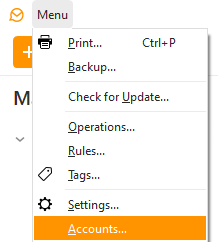
Step 1: Open the account settings via Menu > Accounts.
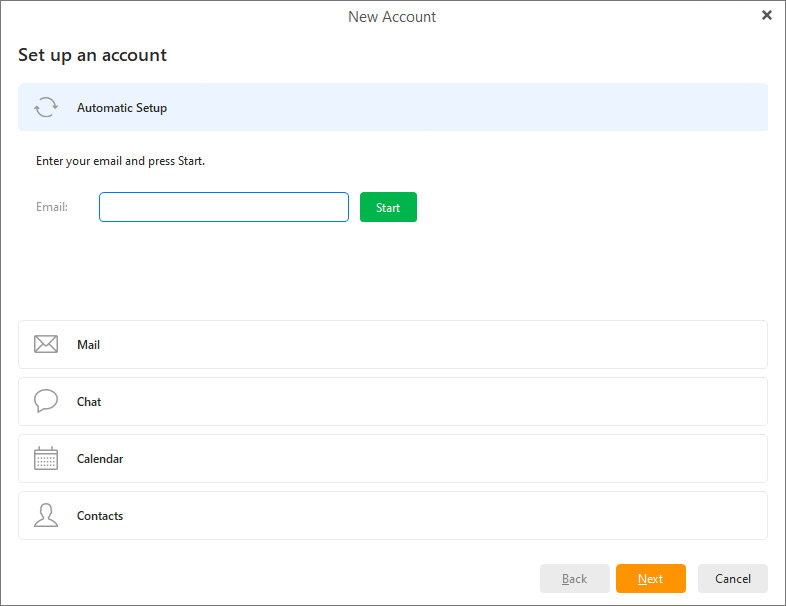
Step 2: Click the “+ Add account” button to open the New Account window. The account wizard will appear. Enter your Business Email address and confirm.
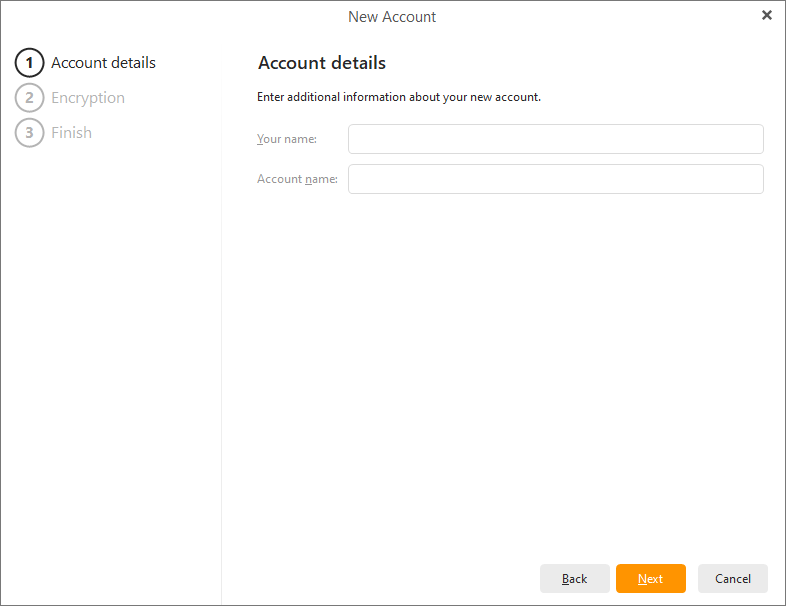
Step 3: Enter the name under which the account should be displayed and click Next.
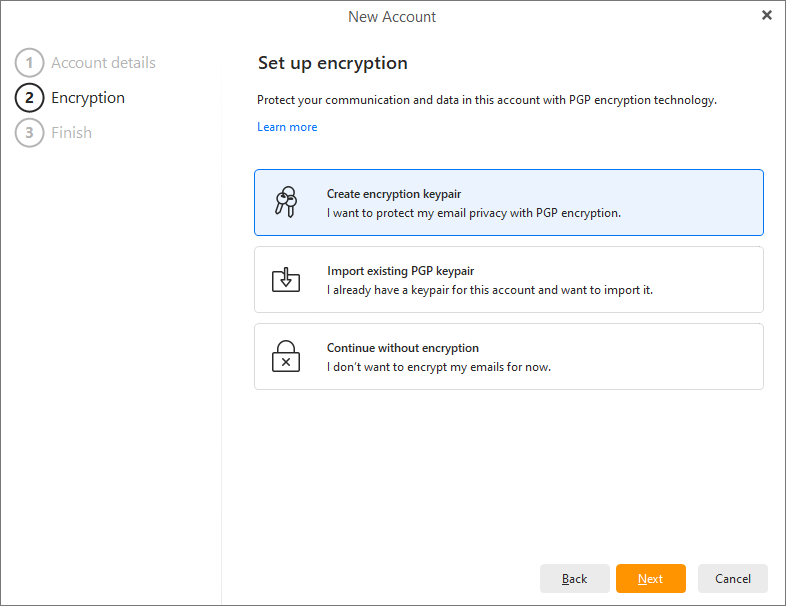
Step 4: Set up encryption for your messages or skip this step.
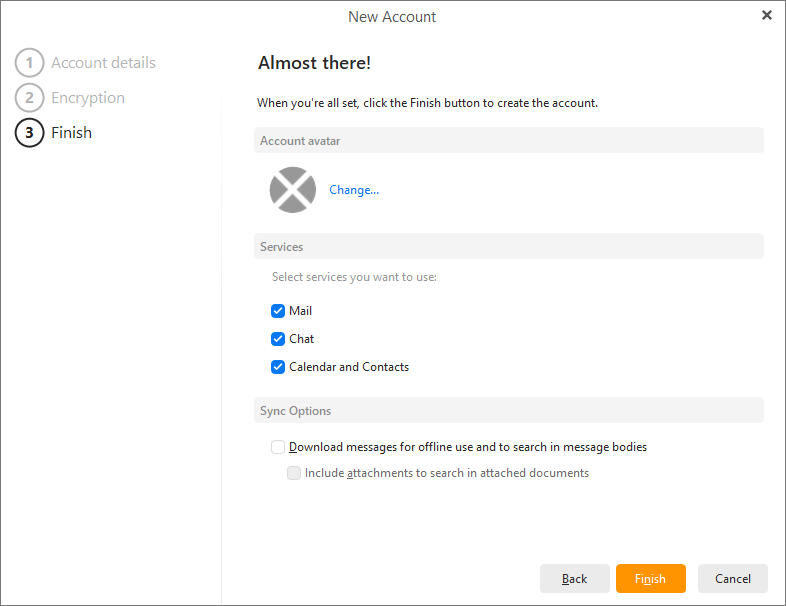
Step 5: Choose your account avatar and select the services you want to use in eM Client. Click Finish to start using eM Client with your Business Email account.
Conclusion
eM Client with Business Email is a powerful desktop solution for managing professional communication. With full email synchronization, offline access, and built-in collaboration features, it helps businesses stay productive and connected with ease.